



A simple guide on how to build a conversational AI chatbot to automate customer-centric conversations.
I build software products and when it comes to chatbots, I’ve built over 17+ of them. Honestly, most of them are just FAQs widgets.
You ask a question, it matches the keyword, fetches the answer from the automated replies list, and delivers it.
In my opinion, this cannot lead to a conversation. It’s some modern search bar with an avatar.
What I wanted to build was something that actually moves through a dialogue: A fully custom AI conversational AI chatbot.
I want the agent to ask the right questions, collect information from my training data, and route the conversation based on what a user says.
This post covers the whole process in 2 different phases:
Phase 1 - Agent Creation: The steps to create a chat agent, customize it with branded elements, create the conversational workflow and add datasets.
Phase 2 - Agent Integration: The process of adding the conversational AI chatbot to your website or app using a custom JS widget and an SDK key.
Contact the MirrorFly Team
Discuss your requirements
Get the dashboard credentials
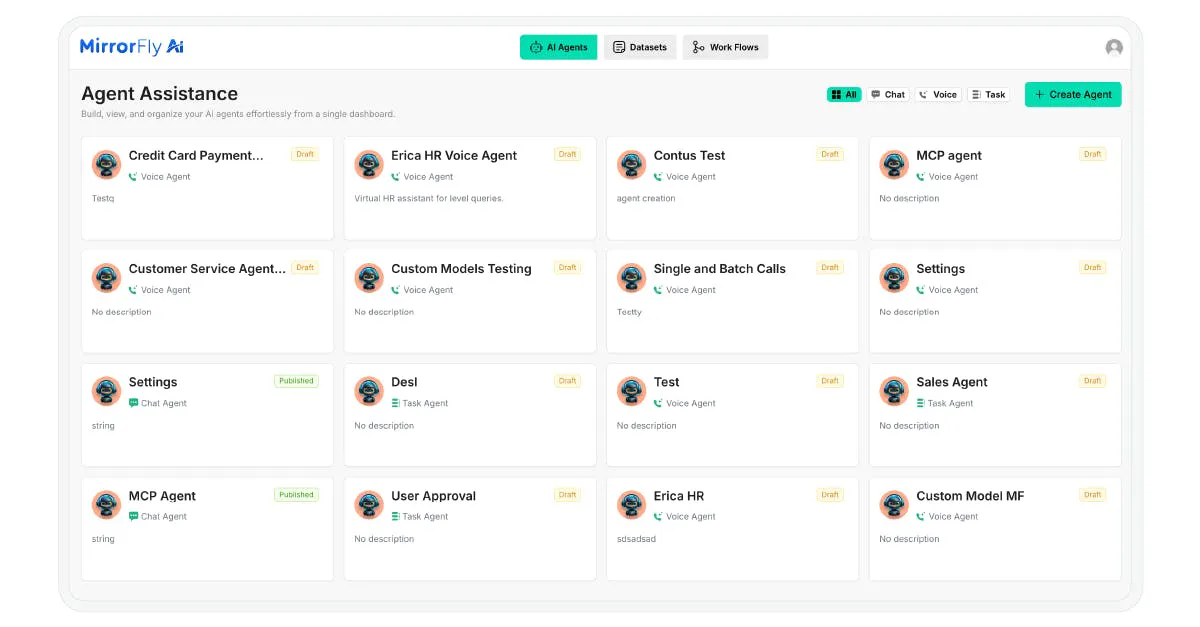
Log in to your dashboard.
Click on ‘Create Agent’ the right-top. A form will appear.
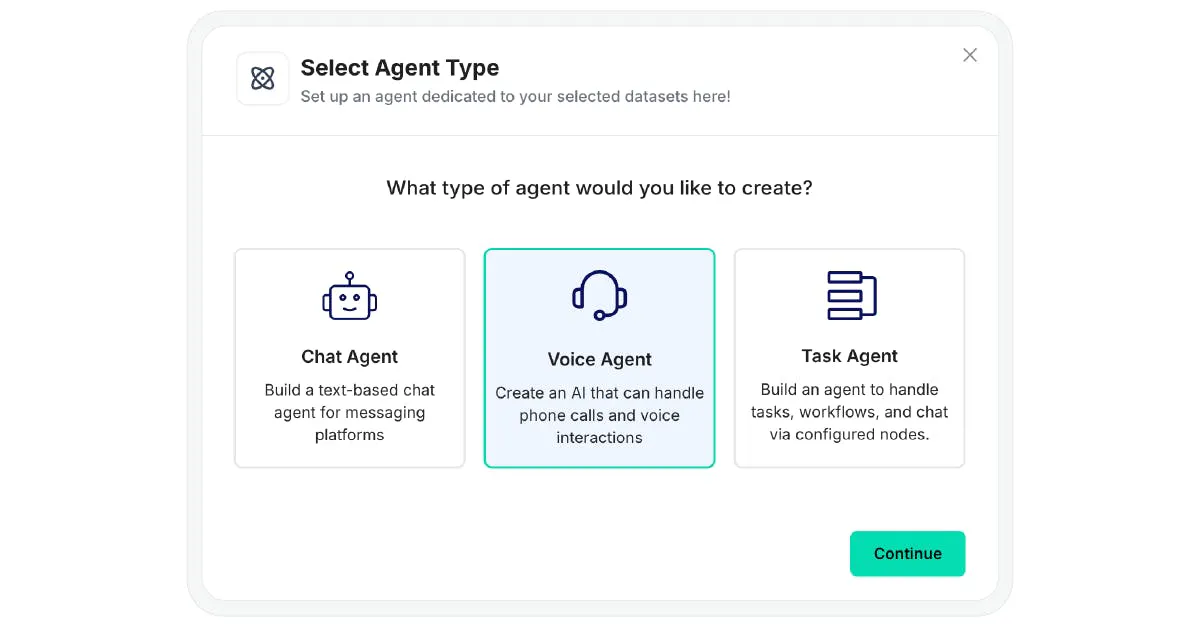
Choose ‘Chat Agent’
Click on ‘Continue’
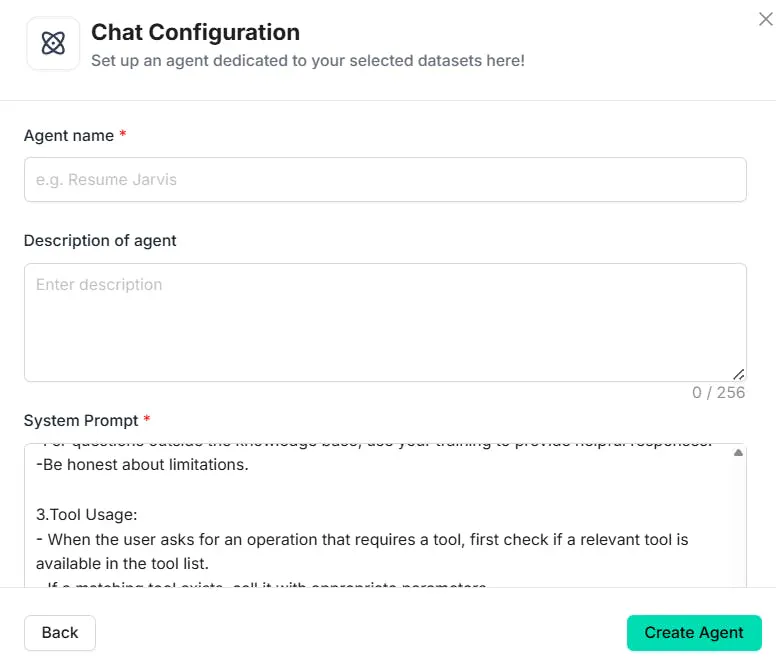
A Chat Configuration form will appear.
Provide the agent name, description, and other necessary information.
Click on ‘Create Agent’.
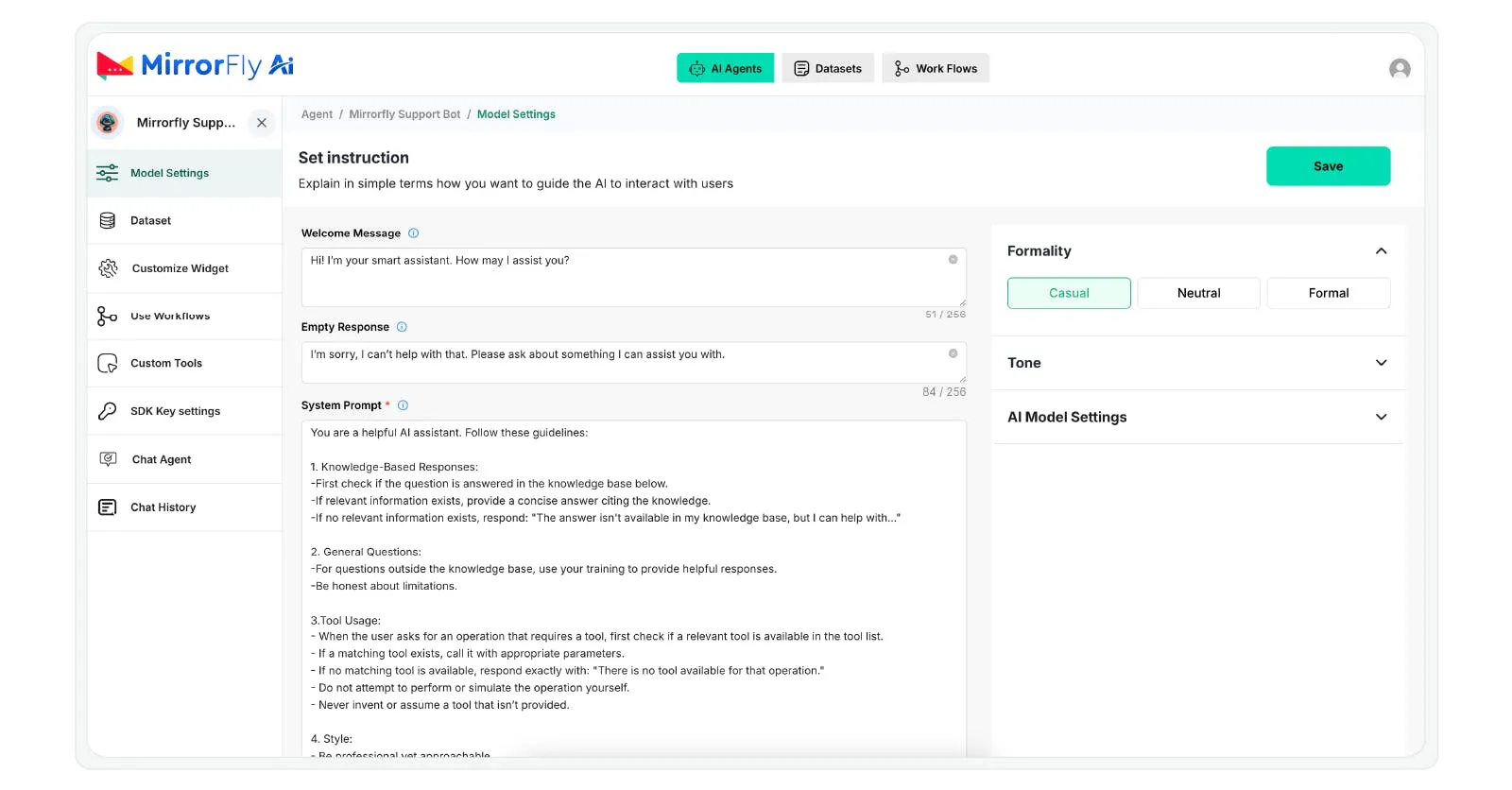
From the menu, click on Model Settings
Provide the chatbot details
Pick a formality and tone
Select the AI model from the dropdown
Create an SDK key (will be used in Phase II for integrating the chatbot with your platform)
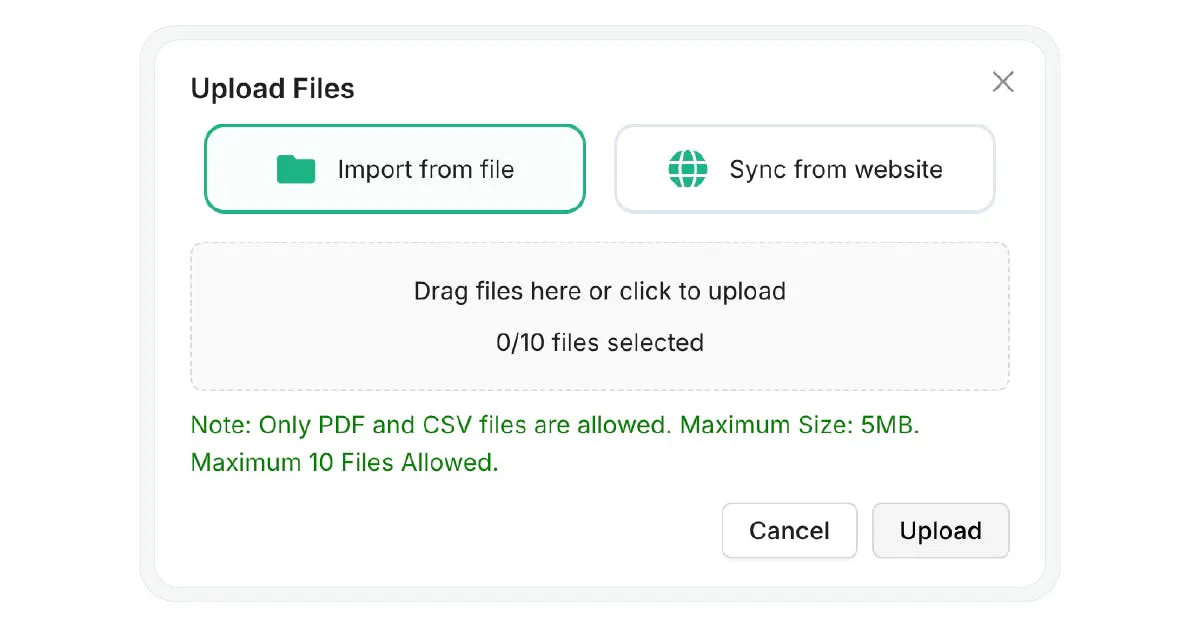
Click on ‘Datasets’
Click on ‘Import from file’
Upload your Knowledge base file (data about your product/ service) in PDF, CSV or TXT format.
Click on ‘Sync from website’
Add the reference name.
Add your website’s URL
In this step we’ll create the chatbot’s workflow.
Click on Workflows
From the left menu, drag and drop elements to the whiteboard
Connect them logically
Use forms, APIs, datasets and other elements to create the conversational flow.
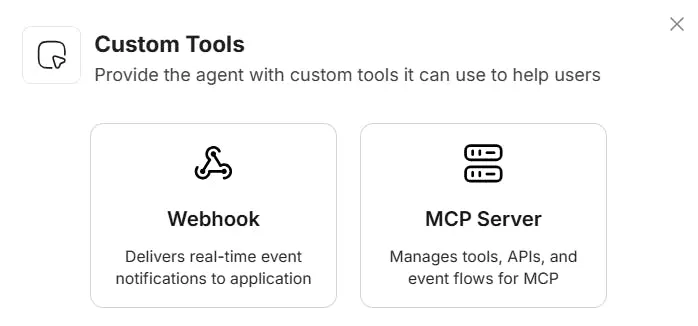
Beyond chatbot features, you can add external tools you use everyday in your workflow.
There are 2 ways to do this:
To send and receive real-time data, use Webhooks. To give access to a third-party tool you use, connect to the MCP server.
Click on ‘Custom Tools’
For Webhooks, follow the below steps:
Click on ‘Webhook’. Add configuration details, headers, path parameters and query parameters.
Click on ‘Create Tool’
For MCP server,
Click on ‘MCP server’
Select email, calendar or drive.
Or click on ‘Add server’ and add the authentication.
At this stage, your AI chatbot is ready for integration. In Phase II, we’ll look into how we’ll add the chatbot to your business platform.
Agent ID (The one you created in Phase I)
A secure HTTPS website
Supported Browsers: Latest versions of Chrome, Edge, and Safari.
Copy the script below.
Add the SDK to your HTML file.
<script src="https://d1nzh49hhug3.cloudfront.net/aiVoiceScript/uat/mirrofly/mirror-fly-ai.v1.1.1.js"></script>Define a container element in your HTML.
Then initialize the SDK using your configuration.
// HTML Container
<div id="widget"></div>

// Initialization
MirrorFlyAi.init({
  container: "#widget",
  agentId: "<YOUR_AGENT_ID>",
  title: "Voice Assistant",
  theme: "dark",
  triggerStartCall: true,
  transcriptionEnable: true,
  transcriptionInUi: true,
  chatEnable: true,
  agentConnectionTimeout: 500
});Use the below code to:
Check the agent’s connection status.
Capture transcriptions during the interaction.
const callbacks = {
  onTranscription: (data) => console.log("Transcription:", data),
  onAgentConnectionState: (state) => console.log("Connection:", state),
  onError: (error) => console.error("SDK Error:", error)
};If your platform runs multiple agents,
use the function below to switch between them.
function switchAgent(newAgentId) {
  MirrorFlyAi.destroy();
  document.querySelector("#widget").innerHTML = "";
  MirrorFlyAi.init({
    container: "#widget",
    agentId: newAgentId,
    triggerStartCall: true
  });
}
Your AI chatbot integration with your platform is now complete.
You can further enhance the functionalities of this chatbot by customizing the workflows and adding more integrations.
You can now run AI voice agents directly within your platform.
In my experience, I understand that the structure is the main difference between an FAS and a conversational AI chabot.
I just didn’t create an accordion, add questions and answers. I used the workflow builder, selected the right elements, and created a logical conversational flow.
The RAG-based chatbot knows what to ask, when and where to collect the data from and respond to the customer. If needed, the chatbot also hands-off the conversation to a real human agent. This way, the customer will not be stuck with a bot and get frustrated.
This was simple with a JS widget as mentioned in this process, rather than building from scratch. I hope this helps your project as well.
Have feedback or questions? Feel free to comment below!
Reference Posts
