



Most developers who write codes to build AI agents have noticed the same gap: building the agent is easy, but deploying, managing and scaling is a total nightmare.
This may sound generic. But the more you play around with AI assistants, the more you’ll understand these things are really hard.
So I decided to go with a custom solution that can take care of design to deployment, including the management and stuff.
The problem it solves:
Pre-built AI agent solutions are dead simple to use. They take care of everything and one can create any number of agents with these widgets.
I chose MirrorFly for its customization options. Without it, the process will take a lot of steps. So without a doubt, I jumped right in.
My plan was to take the implementation in 2 phases:
Phase I: Create the agent
Phase II: Integrate the agent into my app
To get started, I needed an account with MirrorFly. I contacted the team and got my credentials.
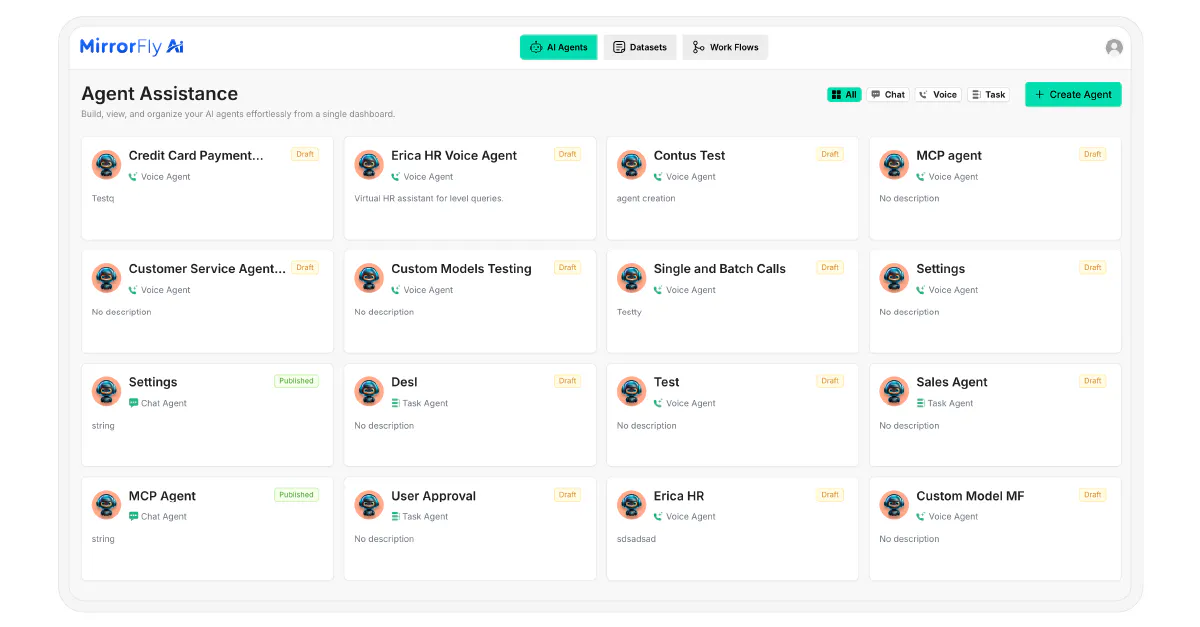
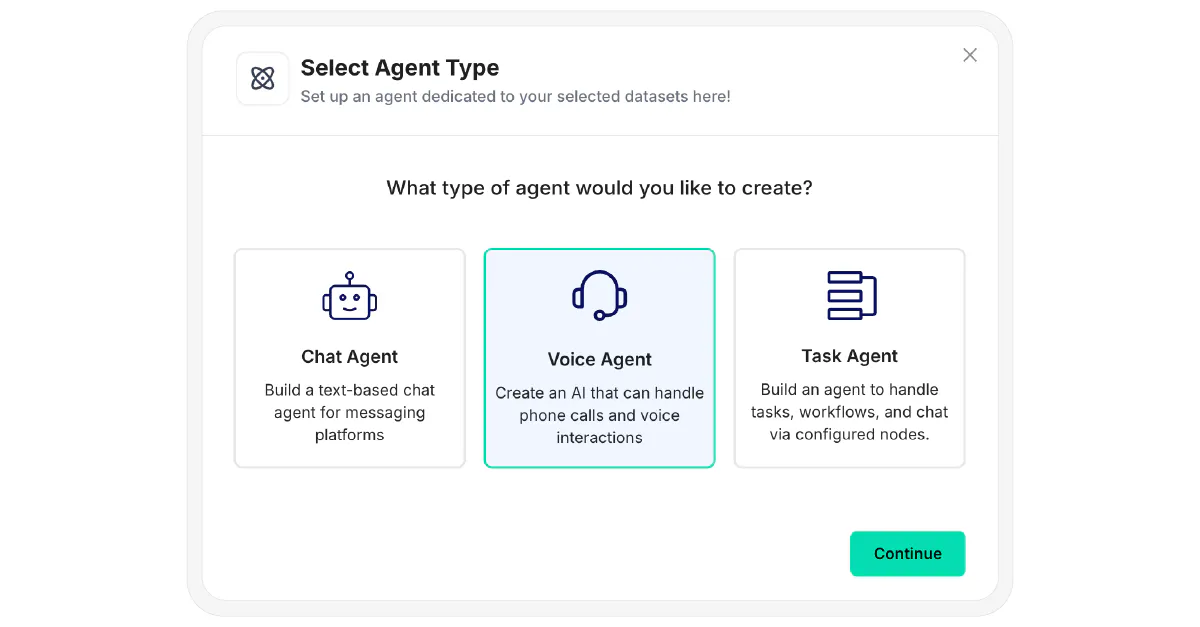
Once I logged in, I clicked on ‘Create Agent’. This popup appeared. I selected ‘Voice agent’
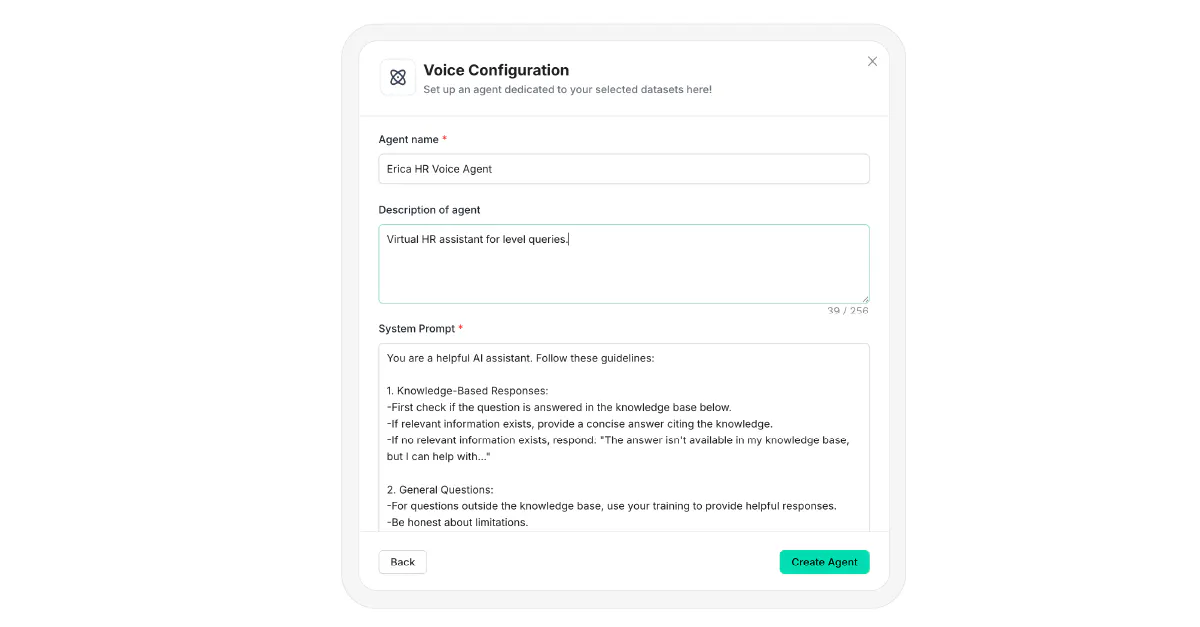
I gave my agent a name, then added the description. I had a system prompt prepared already for the agent. It is the list of instructions that will tell what my agents needs to do, how to talk and what not to.
After creating my AI agent, I set the welcome message and the fallback response. I chose the formality to be neutral and tone to be confident. Then, I picked gpt-4-32k as my model and then created an SDK key.
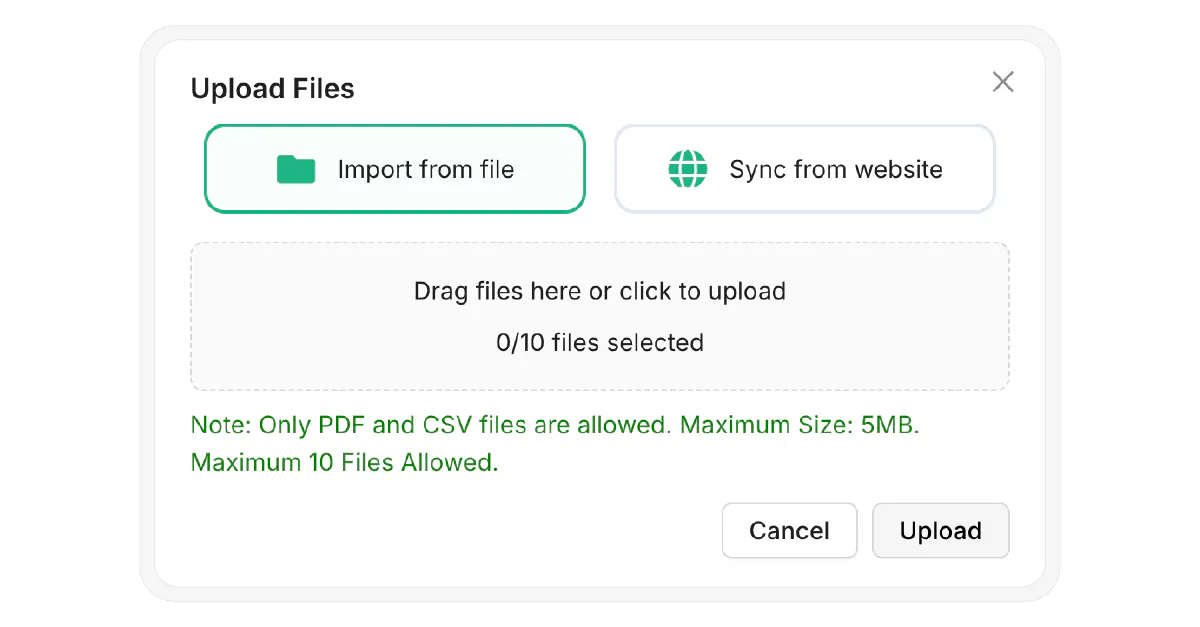
My agent needed data to rely on. So I imported my product details. My website was not ready at the time, so I skipped that step.
In the workflow builder, I dragged and dropped the elements I needed to set up the conversational flow. Since my agent was for lead qualification, I customized a form and added it to the flow to collect the details of the customers in a structured manner.
Next, I configured my STT and TTS.
I picked Deepgram as my STT and TTS. I added the API key and selected the model as aura-2.
Then I set up the interruption sensitivity and conditions for transfer using SIP/ conference options.
Copy the following script, add the SDK to your HTML file.
1. Install the SDK
Copy the following script, add the SDK to your HTML file. To initialize the SDK, I used the following lines:
// HTML Container
<div id="widget"></div>

// Initialization
MirrorFlyAi.init({
  container: "#widget",
  agentId: "<YOUR_AGENT_ID>",
  title: "Voice Assistant",
  theme: "dark",
  triggerStartCall: true,
  transcriptionEnable: true,
  transcriptionInUi: true,
  chatEnable: true,
  agentConnectionTimeout: 500
});I wanted to check the status of the agents and handle callbacks. So I used:
const callbacks = {
  onTranscription: (data) => console.log("Transcription:", data),
  onAgentConnectionState: (state) => console.log("Connection:", state),
  onError: (error) => console.error("SDK Error:", error)
};This was my second agent with MirrorFly. But for switching between them, I used:
function switchAgent(newAgentId) {
  MirrorFlyAi.destroy();
  document.querySelector("#widget").innerHTML = "";
  MirrorFlyAi.init({
    container: "#widget",
    agentId: newAgentId,
    triggerStartCall: true
  });
}
At this stage, my agent creation and addition to my app was complete.
Try out this method. If you configure it and find something interesting your agent can do, I would like to know about it.
Supporting Resources
https://github.com/MirrorFly/Custom-AI-Voice-Agent
